

Getting started
From signing up to a live job with the programme laid out — about twenty minutes, most of it deciding on a template.
Updated 8 October 2026
This walks through the whole of your first day on SiteScope: creating the account, setting the company up, putting your first job on, and getting the client looking at it. Nothing here needs a paid plan.
Before you start
Have one live job in mind — ideally one that has started but isn't nearly finished, so there's something to look at. If you have the proposal or schedule of works you sent the client as a PDF, keep it to hand: on Pro, FlowAI can read the programme straight out of it.
The free plan is not a trial
One project, one client, no team members, no clock. It is enough to run a job end to end. The one thing to know is that Free counts every project you have ever created, including finished ones — so it is a way to run a job, not a way to run a business one job at a time.
1. Create your account and company
- 1
Sign up
Name, email, password. We email you a code — type it in on the same screen, or on any device from the email's Enter my code button — and you're signed straight in. There's no link to click, so a workplace mail filter can't use it up first.
- 2
Create the company
Company name, phone, email and address. This is what your clients and team see, so use the trading name rather than the limited company name if they differ. A welcome email follows with these same steps.
- 3
Add your logo and colour
Company settings. The logo and brand colour appear in the sidebar, across the project workspace, and on every invite and join screen a client sees. It is the difference between the client thinking they are using your system and thinking they are using someone else's.
Registration number, VAT number, insurance and qualifications are optional now but worth filling in before your first handover — they are pulled into the handover pack.
Picked a paid plan on the pricing page? Settings → Plans opens next, with Continue to payment. The card details go on Stripe's own page, and you come back to a page confirming the plan, what was charged and the receipt. Or carry on with Free and decide later — nothing on Free expires.
The tour
The first time you open the dashboard, you're asked whether you'd like a quick look round: the few screens you'll use first, then where to find help. At the end it offers the full tour, page by page. Skip it if you'd rather — it's under the ? at the top of every screen whenever you want it.
2. Put the first job on
Projects → New project. You have two ways in.
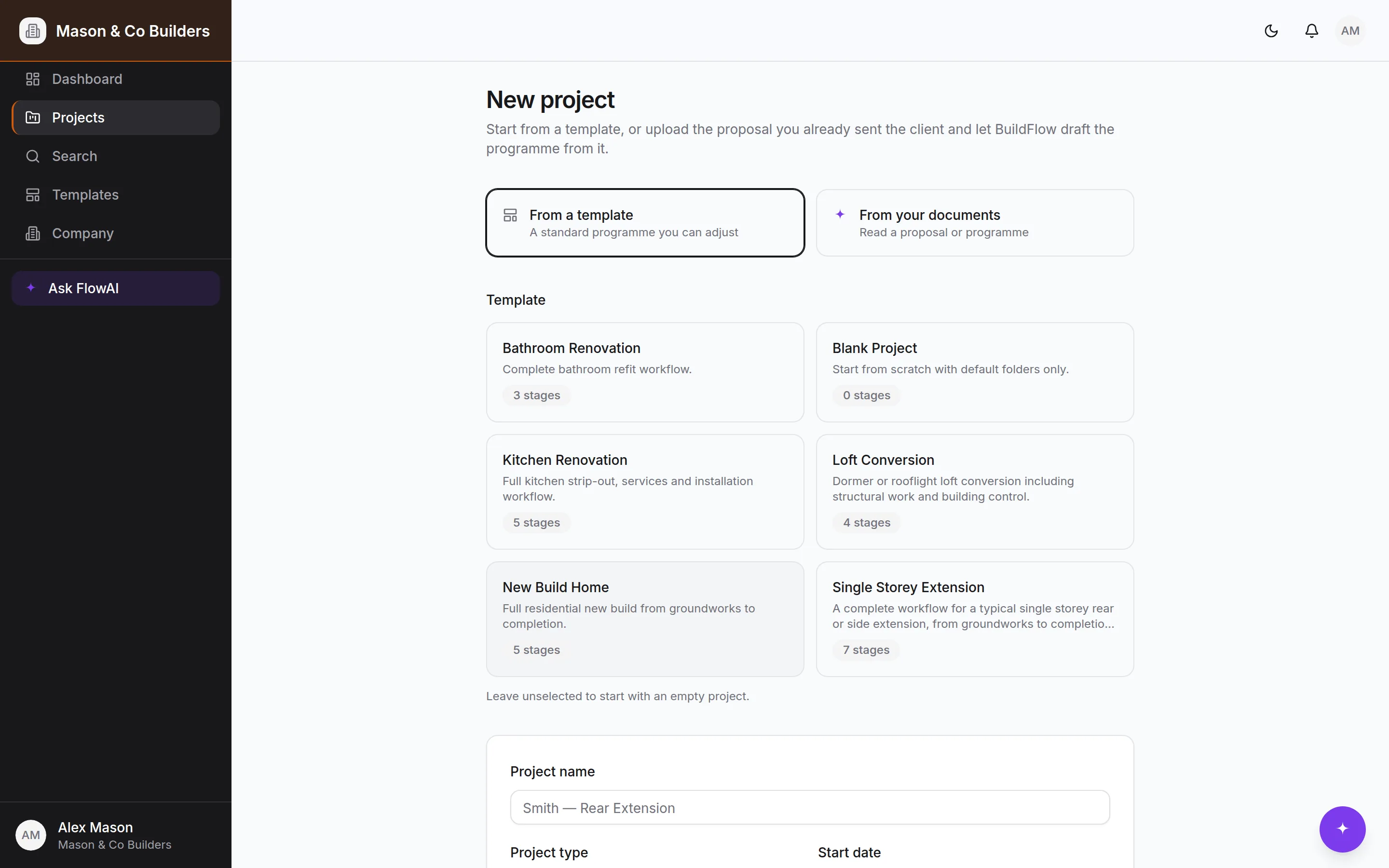
From a template
Pick the closest — Single Storey Extension, Kitchen Renovation, Loft Conversion, New Build Home, Bathroom Renovation, or Blank. SiteScope generates the stages, tasks, checklists, milestones and the building-control inspection schedule in one go. It is a starting point, not a straitjacket: reorder the stages, move the dates, delete what doesn't apply.
From your documents
On Pro, upload the proposal, quotation or programme you already sent the client. FlowAI reads it and drafts the stages, tasks, milestones and inspections from what the document actually describes. You get the draft as an editable form — change what it got wrong, delete what you don't want, then create the project. Nothing is written to your account until you press the button.
PDFs are read natively, including scanned ones, and a photograph of a printed programme works. Up to 15MB per file.
Either way, fill in the project name, type, address, start date and target completion. The address matters more than it looks — it is on the client's screen and in the handover pack.
3. Check the programme
Open the Timeline tab. You are looking for three things:
- The stages are in the order you actually work, and the dates are plausible.
- The milestones are the ones you would tell a client about — watertight, first fix complete, that sort of thing.
- The building-control inspections match what your job actually needs.
Fix it now rather than later. Everything downstream — tasks, the client's view, the handover pack — hangs off these stages.
4. Add your team
Company settings → Team. Invite employees, subcontractors and admins into the company once — by email, or with a link or QR code — then put them on the projects they're working. A subcontractor sees the jobs they are on and nothing else.
The free plan has no team seats — it is you and one client. Basic and above have five and twenty respectively.
5. Bring the client on
Project → Team → Invite. Put their email address in and SiteScope sends the invitation from you, by name — and only that address can accept it. Leave the address off and you get a link and a QR code to text or print instead. Either way they make an account, confirm it with the code from the email, and land inside their project: no admin from you, no shared logins.
Before you send it, spend two minutes deciding what they should see: which milestones, which documents. The site diary is never visible to clients, and neither is what the job costs you — though they do see their own side of the money: the agreed sum, the payment schedule and anything waiting on their answer.
6. Get into the habit
SiteScope is worth what you put into it, and the habit that matters is small: a diary entry and a couple of photos at the end of each day, from the phone, in the van. Two minutes. It is what makes the record worth something when a question comes up eight months later, and it is what stops the client ringing.
Ask FlowAI
On Pro, the assistant is pinned to the bottom-right of every screen and knows the job in front of it. "What's left before we can book the pre-plaster inspection?" is a fair question to open with.
When you get stuck
The ? at the top of every screen. On Pro and Bespoke, ask FlowAI first — it has read these guides as well as your job. Then search the guides, and if neither has it, email us: a person replies.
Where to go next
Still stuck?
- 1Ask FlowAI in the app — it has read these pages. Pro and Bespoke.
- 2Common problems, solved.
- 3Email support.sitescope@kudu-digital.com. We reply within two working days.