

Using FlowAI well
What the assistant can see, what it can change, how the confirmation step works, and what stops it running up a bill.
Updated 8 October 2026
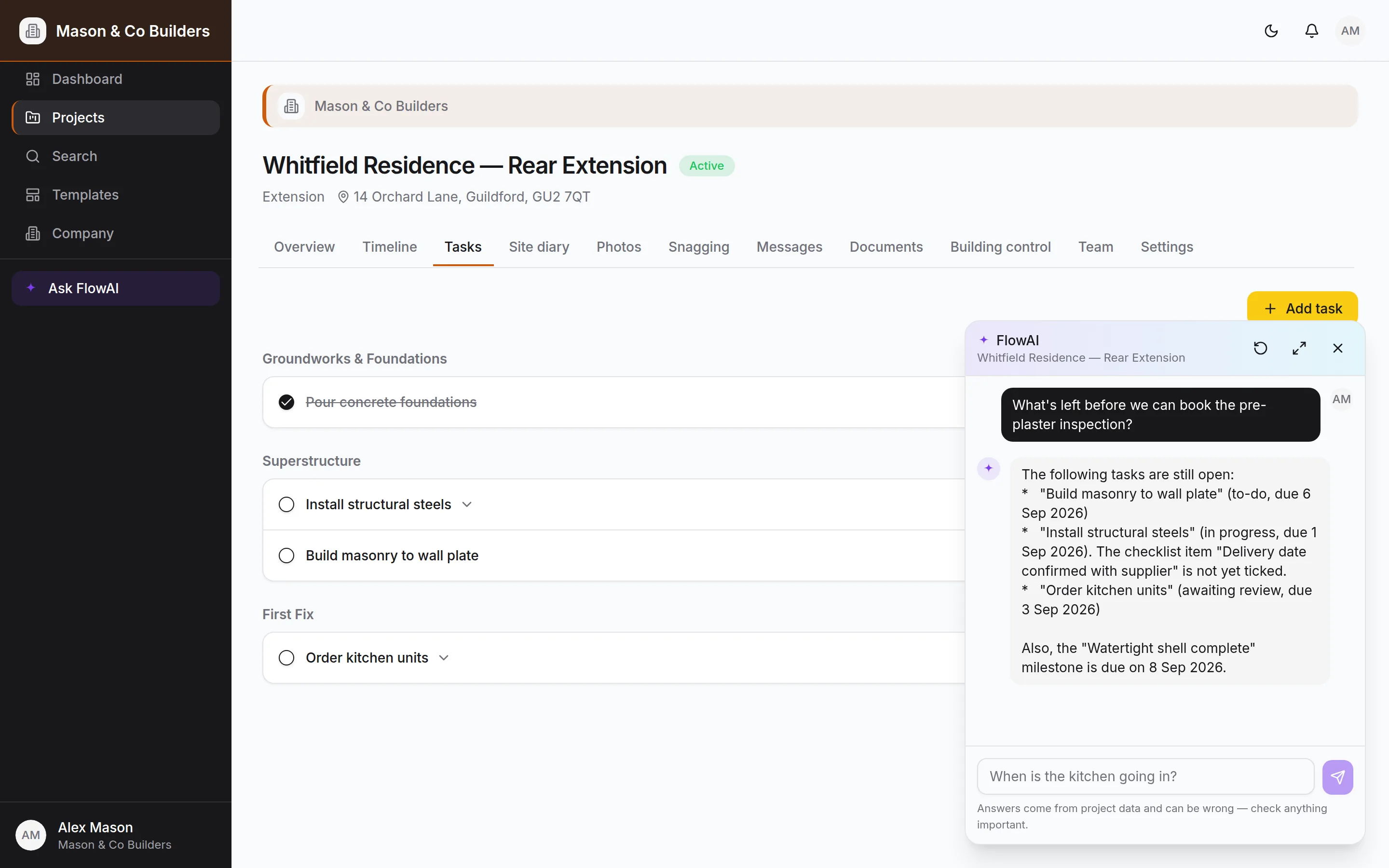
FlowAI is pinned to the bottom-right corner of every screen on Pro and Bespoke. It is given the project you are looking at — programme, tasks, snags, documents, diary, inspections — and answers from that rather than from the internet. Before your first project, it's there too, answering questions about SiteScope itself from these guides.
What it can see
Two sources, and the difference matters if you are wondering why an answer is what it is.
- A snapshot of the project sent with your question — the stages, recent tasks, snags, milestones, documents, inspections, certificates and messages. It is capped, newest first, and says so when it has left things out.
- Search tools that query the live database. These are the authority, and FlowAI uses them whenever it needs a specific record and always before proposing a change.
It also searches this documentation, so "how do I invite a client?" and "what goes in the handover pack?" get an answer with a link, not a guess. That makes it the first place to ask when you're stuck: if the guides don't cover it either, it says so and gives you our support address rather than making something up.
Clients get a narrower FlowAI
A client's assistant has no access to the site diary, costs or margins, and cannot change the programme. It can post a message to the thread on their behalf, which is the right way for a request to reach you.
Where to find it
- The corner of every screen. It opens over whatever page you're on, already looking at that project.
- Ask FlowAI in the sidebar, or in the menu on a phone.
- The Help page, under the ? at the top: type a question there and FlowAI opens with the answer.
- A project's assistant page, for a longer conversation full-screen.
Questions worth asking
- "What's left before we can book the pre-plaster inspection?"
- "Which tasks are due in the next two weeks?"
- "Which snags are still open, and who is on them?"
- "What did we agree with the client about the kitchen worktops?"
- "What's blocked, and what's blocking it?"
- "Summarise the last fortnight for the client update."
- "How do I change my plan?" — or anything else about using SiteScope.
The pattern is: questions about this specific job that you would otherwise answer by opening four tabs. It is not a search engine and it is not a surveyor.
Making changes
Ask it to change something and you get a proposal, not a change. A card appears naming the record as the database has it — resolved from the id, not from what FlowAI thought you meant — and nothing happens until you tap Confirm.
What it can propose:
- Set a task's status, assign it, tick a checklist item, create a task
- Set a snag's status, create a snag
- Create a stage, set stage progress, tick a milestone
- Post a message to the project thread
What it deliberately cannot do at all: delete anything, send invitations, change roles, change the plan, or approve documents. Those stay decisions a person makes in the interface.
Check the name on the card
The card names the record it resolved. If it says a task you did not mean, dismiss it and be more specific — that is exactly what the step is for.
Getting better answers
- Name things as they appear in the project. "Order kitchen units" beats "the kitchen thing".
- One change per message. Ask for three and you will get the first, plus a note about the rest.
- Give it the detail you want used. It will not invent a due date or a priority, and an unset field is better than a wrong one.
- Clear the thread when you change subject. The conversation is context; a stale one costs tokens and can confuse an answer.
What it costs, and what stops it
FlowAI is included in Pro and Bespoke. Underneath, usage is measured — not estimated — from what the model provider actually charges, and three things keep it bounded:
| Control | What it does |
|---|---|
| Bounded snapshot | Every list sent with a question is capped and says what it left out, so a big project does not send a big context. |
| Per-question token ceiling | One question has a limit across all of its steps. A normal exchange never approaches it; a runaway one stops within pennies and says so. |
| Repeat detection | The same search run twice is not run a third time — a model going in circles costs one round, not a fresh query each time. |
| Monthly allowance | Each company's plan comes with an allowance of FlowAI a month. Use it all and FlowAI pauses until the 1st, rather than billing on. |
Settings → Plans shows the tokens used this month and how much of the allowance that is. It isn't something you set or pay extra for — if an account genuinely needs more, email support.
When it gets something wrong
It will, occasionally. Every reply carries a reminder that answers come from project data and can be wrong. Two habits make that manageable:
- 1.Treat an answer as a pointer, not a fact, for anything you would act on without checking — dates a client is relying on, or anything with money attached.
- 2.Read the proposal card rather than the sentence above it. The card is what will actually happen.
It is not giving structural, legal or building-regulations advice, and it is told to say so rather than have a go.
Still stuck?
- 1Ask FlowAI in the app — it has read these pages. Pro and Bespoke.
- 2Common problems, solved.
- 3Email support.sitescope@kudu-digital.com. We reply within two working days.