

Bringing a client onto a job
Inviting by email or QR code, what the client sees, what they never see, and how to set the expectations that stop the Saturday phone call.
Updated 8 October 2026
Homeowners are not difficult. They are in the dark. Giving them their own view of their own job removes most of the friction on its own — but only if you decide up front what they see, and tell them what to expect.
Sending the invite
Project → Team → Invite, with Client chosen. Two ways to send it:
- By email. Put their address in and SiteScope emails the invitation, from you by name and in your colours. Only that address can accept it, so a forwarded email gets nobody else in.
- By link or QR code. Leave the address off and you get a secure link, drawn as a QR code — print it for the site board, or send it in a text.
- 1
They open it
The join screen carries your logo and colour, so it reads as your system rather than a third party's.
- 2
They make an account
Name, email, password, then the code we email them — typed in on the same screen, or on any device. The invitation is what ties them to the project, so there is nothing for them to get wrong.
- 3
They land in their job
Straight into the project, with nothing else on the account visible to them — and a short tour of where everything is.
A client's invitation works once and lasts fourteen days. If it runs out first, send another; the old one simply stops working.
One account per person, not per household
If both partners want access, send two invites. Shared logins mean you cannot tell who approved what, which defeats the point of the audit trail.
What the client sees
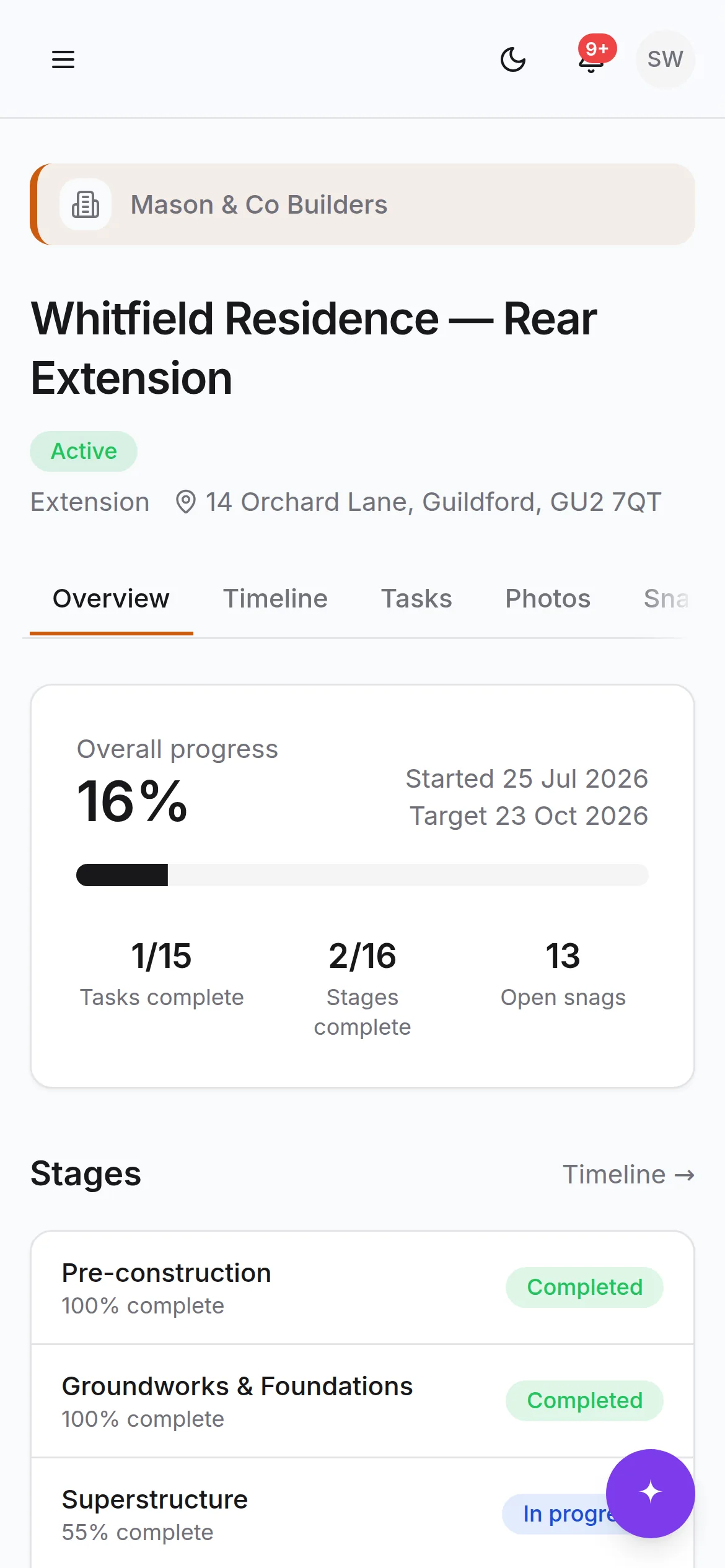
- Overall progress, the stages, and the milestones you have chosen to share
- Progress photos of their job
- Documents you have marked visible, with an approval step where you need one
- The project thread — questions, decisions, variations
- Snags they have raised, and how they are going
- What is waiting on them: decisions and approvals holding work up
They don't have to keep checking. Anything waiting on them is emailed if they haven't seen it in the app within a few minutes, a decision gets a reminder two days before it's needed, and an invoice three days before it's due. They choose how much of that they get.
What the client never sees
- What the job costs you, and what you are making on it
- Subcontractor payments, purchases and anything CIS
- The site diary — hours, workers, issues, deliveries, visitors
- Internal notes and messages between your team
- Documents you have not marked visible
- Any other project, client or company
They do see the commercial side of their own job, which is the point of showing it at all: the agreed sum including VAT, the payment schedule, what they have paid, what is due next, their invoices, and any change waiting on their answer. The same figures you are looking at — not a copy.
This is enforced by the database, not by hiding buttons. A client going looking for something they are not entitled to is refused where it cannot be worked around — including outside the interface.
Set the expectation in the first message
The single most useful thing you can do is post one message on day one telling them how this works. Something like:
Hello both — you're now on our project system.

You'll see progress, photos and any documents that need your
eye. I'll post an update every Friday, and photos most days.

If you need something, put it here rather than texting me —
it means it doesn't get lost and everyone on the job can see
the answer. Anything urgent, ring me as normal.

Two things to look out for: decisions we need from you show
up on your dashboard (and in your email), and once we're near
the end you'll be able to raise snags with a photo straight
from your phone.
It takes a minute and it converts the system from a thing you use into a thing you both use.
Decisions and approvals
Where a document needs the client's agreement — a variation, a revised drawing, a spec change — mark it for approval rather than asking in a message. They get a clear yes/no, and the answer is recorded against a named person and a moment in time.
For choices rather than documents, post a message in the decision category. It stays findable, which matters when "we agreed the grey" comes up in month four.
Snagging with the client
Near the end, tell them to raise snags in the app with a photo. It is faster for them than a list in an email and it gives you a room, a photo and a timestamp rather than "the paintwork upstairs".
When the job is over
Clients keep access to their project after completion. The handover pack, the photo record and the certificates stay there. It costs you nothing — completed projects free up a slot on the paid plans — and it is the thing that gets you the recommendation two years later.
Still stuck?
- 1Ask FlowAI in the app — it has read these pages. Pro and Bespoke.
- 2Common problems, solved.
- 3Email support.sitescope@kudu-digital.com. We reply within two working days.